
Security
Binance 2FA: How to Set It Up, Back It Up and Recover It (2026)
Use an authenticator app over SMS, save the setup key offline before you finish, and register a backup. Plus both recovery paths after a lost phone.
Published: August 2026 · By the bsvar editorial team
Short answer: enable an authenticator app rather than SMS, save the setup key somewhere offline before you finish enabling it, and register a second method. Almost every "I'm locked out of my account" story starts the same way — 2FA was enabled correctly, and the backup was never made.
The backup step is the whole point of this guide. Enabling 2FA takes two minutes. Recovering from a lost phone without a backup takes weeks and sometimes fails.
Why SMS is the weakest option
SMS two-factor authentication is better than nothing, but it is the least secure of the common choices, because your phone number is not really under your control. A SIM-swap attack works by convincing your mobile carrier to move your number to an attacker's SIM — through social engineering, a bribed employee, or leaked personal data. Once the number moves, every SMS code goes to the attacker, and your phone quietly loses service.
SMS also fails in ordinary situations: travelling with a different SIM, poor coverage, or a carrier that blocks international short codes. A code you cannot receive is a lock you cannot open.
Use an authenticator app as your primary method. Keep SMS, if at all, as a secondary.
The methods, ranked
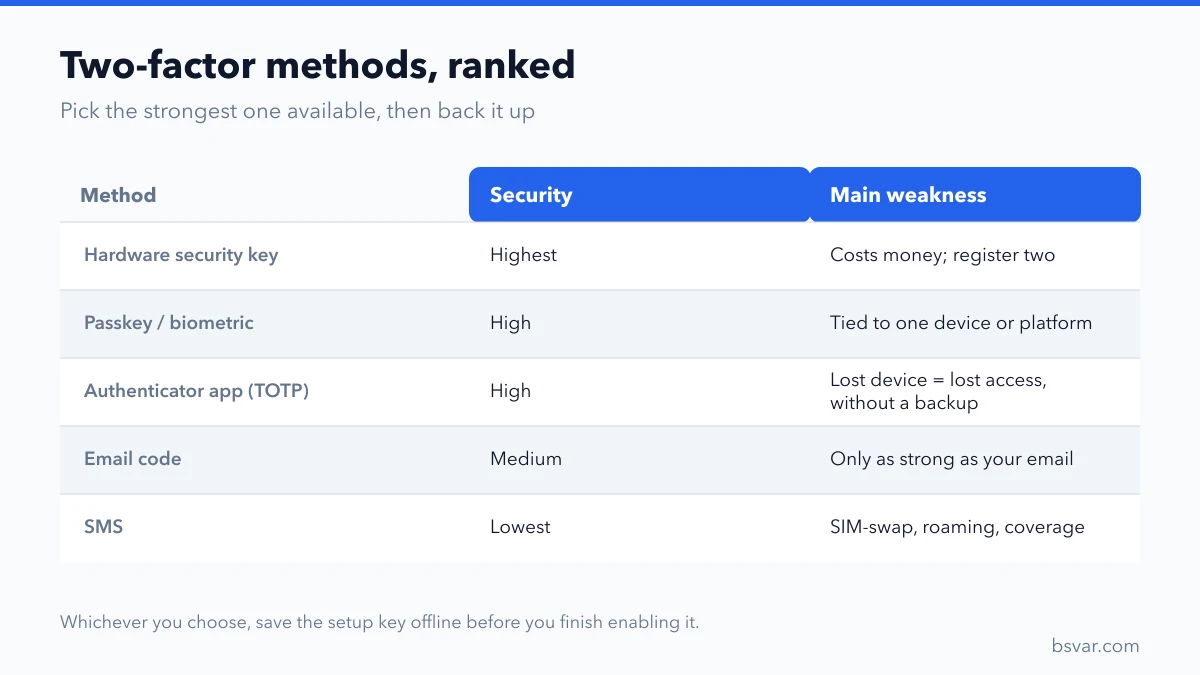
| Method | Security | Main weakness |
|---|---|---|
| Hardware security key | Highest | Costs money; must be carried; register two |
| Passkey / biometric | High | Tied to a device or platform account |
| Authenticator app (TOTP) | High | Lost device = lost access without a backup |
| Email code | Medium | Only as strong as your email account |
| SMS | Lowest | SIM-swap, roaming and coverage failures |
If your email is the fallback for your exchange, then your email account is now part of your exchange security. Secure it with its own authenticator-app 2FA first.
Setting it up properly
- In the Binance app or website, open the security section of your account settings.
- Choose Authenticator App.
- The screen shows a QR code and, usually behind a link, a setup key (a string of letters and numbers).
- Stop here and save the setup key. Write it on paper, or store it in a password manager. Do not screenshot it into your camera roll, and do not save it only on the same phone that holds the authenticator app.
- Scan the QR code with your authenticator app.
- Enter the six-digit code to confirm.
- Register a second method as backup.
- Test it: log out and log back in.
That fourth step is the one people skip. The setup key is what lets you rebuild your 2FA on a new device. Without it, a lost phone means an identity-verification appeal.
Backups that actually work
A written copy, stored offline. Paper in a drawer beats a cloud note that is protected by the same account you are trying to secure. Two copies in two locations is better than one.
A password manager. Convenient and encrypted — but only if the manager itself is protected by a strong, unique password and its own 2FA. Storing your exchange password and your 2FA seed in the same vault means the vault is a single point of failure. Many people accept that trade-off; do it knowingly.
A second device. Some authenticator apps let you register the same account on two phones, or sync across devices. That is a genuine backup, provided the sync account is itself well secured.
What is not a backup: a screenshot in your photo library, a note in your email drafts, or a message to yourself in a chat app. These are readable by anyone who compromises those accounts.
When you lose the phone
If you saved the setup key: install an authenticator app on the new device, choose to add an account manually, and enter the setup key. The same six-digit codes resume. Then reset the key on the exchange so the old device's copy no longer works.
If you did not: you need the account's official recovery or appeal route. Expect to prove your identity — commonly a document check, a selfie, and questions about account history such as deposit amounts and dates. This is slow by design, because a fast reset process would itself be a vulnerability.
While you wait: do not create a second account, and do not accept help from anyone who contacts you offering to speed it up. That offer is the single most common follow-on scam.
After any recovery, do this
- Reset your 2FA key so the old device is invalidated.
- Change your password.
- Review active sessions and API keys, and revoke anything unfamiliar.
- Re-check your withdrawal address whitelist.
- Confirm your registered email and phone number are still yours.
Mistakes worth avoiding
- Enabling 2FA and skipping the setup key.
- Keeping the only backup on the same phone as the authenticator.
- Using SMS as the sole method.
- Reusing the email password anywhere else.
- Ignoring an unexpected 2FA prompt — that is someone testing your password right now. Change it immediately.
- Sharing a code with "support". No legitimate support ever asks for one.
FAQ
Which authenticator app should I use?
Any reputable TOTP app works — the standard is the same. Choose one you will still have access to in a year, and understand whether it backs up your keys.
Can I use 2FA on more than one device?
Yes, if you scan the same QR code on both during setup, or use an app with device sync. This is one of the simplest backups available.
Is SMS 2FA useless?
No — it is much better than no second factor. It is simply the weakest option and a poor choice as your only one.
What if the codes are rejected as invalid?
Usually a clock problem. TOTP codes depend on accurate time. Enable automatic date and time on the device, or use your authenticator app's time-sync option.
Should support ever ask for my 2FA code?
Never. Anyone asking is attempting to take your account, regardless of how convincing the profile looks. See Fake Support Scams: Six Tells That Never Change.
Does 2FA protect me if my password leaks?
It raises the bar considerably, which is exactly its purpose. It does not protect you if you hand over the code yourself — which is why phishing focuses on getting you to do that.
Related guides
- Withdrawal Address Whitelist: The Setting That Stops the Costliest Mistake
- Binance KYC Verification: Documents, Selfie and Failure Fixes
- How to Spot a Fake Exchange or App
- Avoid Crypto Scams: Common Scams and How to Spot Them
Educational content, not financial advice. Security options and recovery procedures are set by the platform and change over time; follow the current official instructions in your account. See our Advertising & Commission Disclosure.