
Security
Anti-Phishing Code: How to Set It Up on Binance and OKX and Check Emails (2026)
An anti-phishing code is a short string you choose that the exchange adds to its genuine emails. This guide covers setup on Binance and OKX from their official help centers, how to check an email, and which scams the code can't stop.
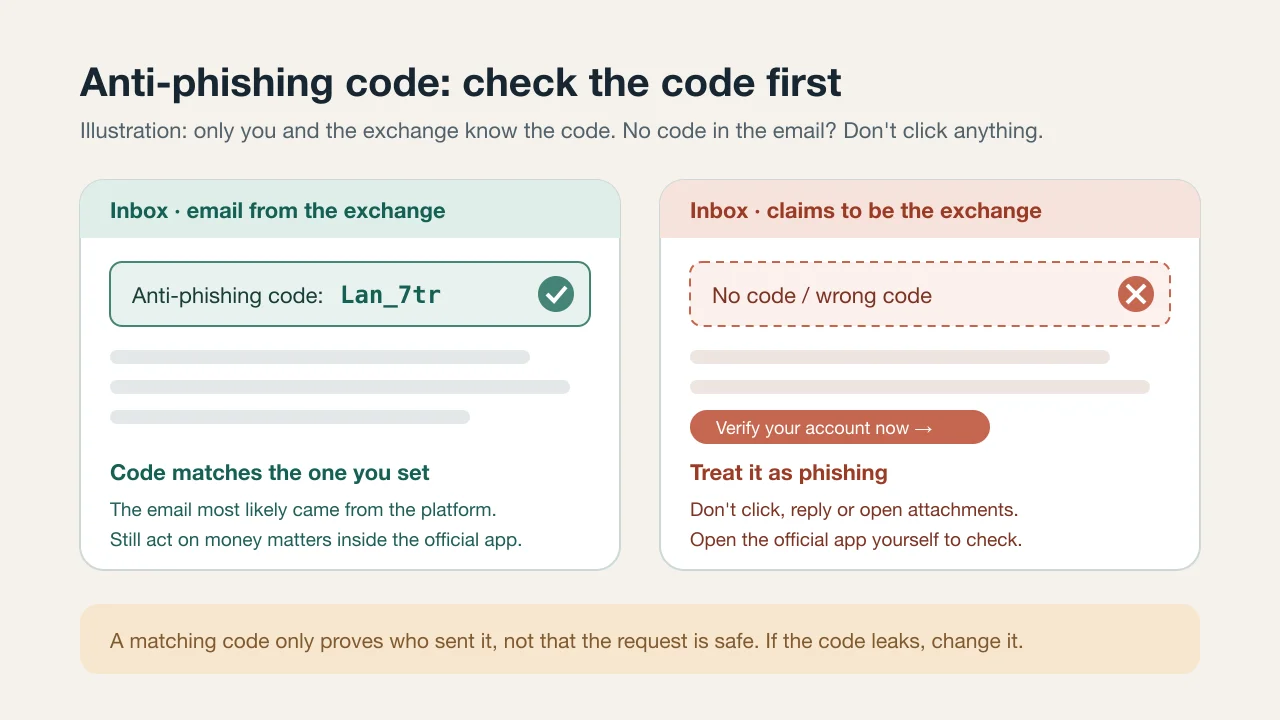
An email lands in your inbox: "Unusual activity on your account. Verify now." The fastest way to tell whether it really came from your exchange is to look for your anti-phishing code. This is a short string you set in your account. Once it's on, the platform includes it in its genuine emails. A scammer who has never logged in to your account doesn't know the string, so a fake email won't have it.
What does an anti-phishing code actually do?
Phishing emails copy an exchange's sender name, logo and layout. Then they add a "Verify now" or "Unlock account" button that leads to a fake login page. The look can be copied. Your code can't, because it exists only in your account settings.
So the code answers one narrow question: did this message come from the platform? The two exchanges describe it slightly differently:
- Binance: according to its help center, the code appears in all genuine emails and SMS from Binance. If the code is wrong or missing, the message may be phishing and you should report it.
- OKX: according to its help center, the code appears in all email communications from OKX to confirm they're authentic. The page doesn't mention SMS, so don't use the code to judge OKX text messages.
How to set up an anti-phishing code on Binance
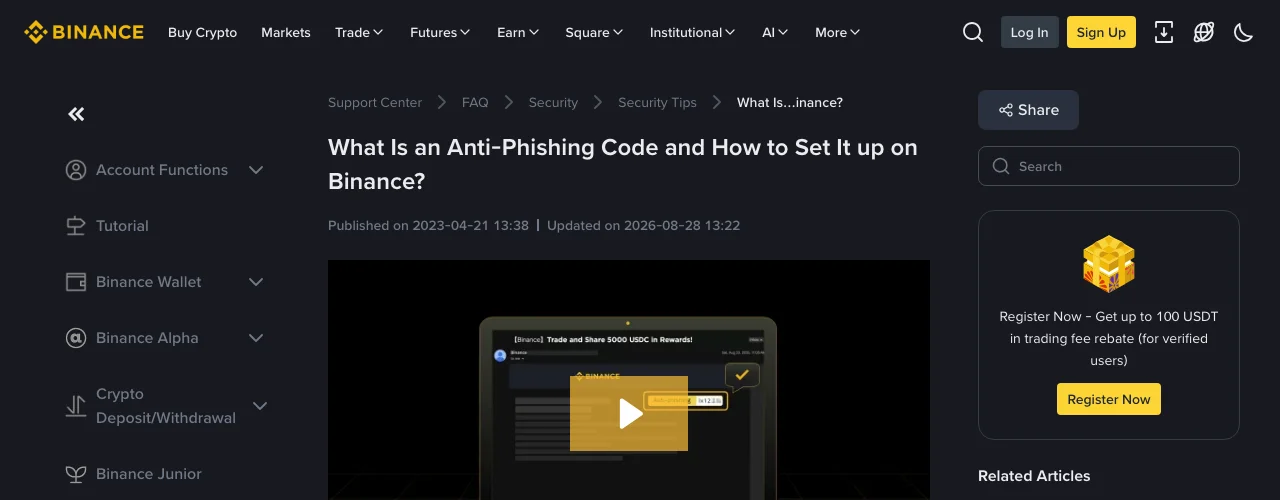
These steps come from that Binance help center article (updated August 28, 2026). Menu labels in your app may differ slightly.
Website: log in, hover over the profile icon and click Account. Go to Security. In the Advanced Security section, click Enable next to Anti-Phishing Code, then Create. Enter your code, click Submit, and complete two-factor verification (2FA).
App: go to Profile → Account Info → Security → Anti-Phishing Code → Create. Set your code, tap Submit, and verify with 2FA or a passkey.
Binance has format rules. The code must be 6 to 8 characters long and use at least three of these four types: uppercase letters, lowercase letters, digits and underscores. Other special characters aren't allowed. For example, Lan_7tr meets the rules. To change it later, click Change in the same place and confirm with 2FA.
If you haven't turned on 2FA yet, you won't get past the last step. See how to set up and back up Binance 2FA first, then come back.
How to set up an anti-phishing code on OKX
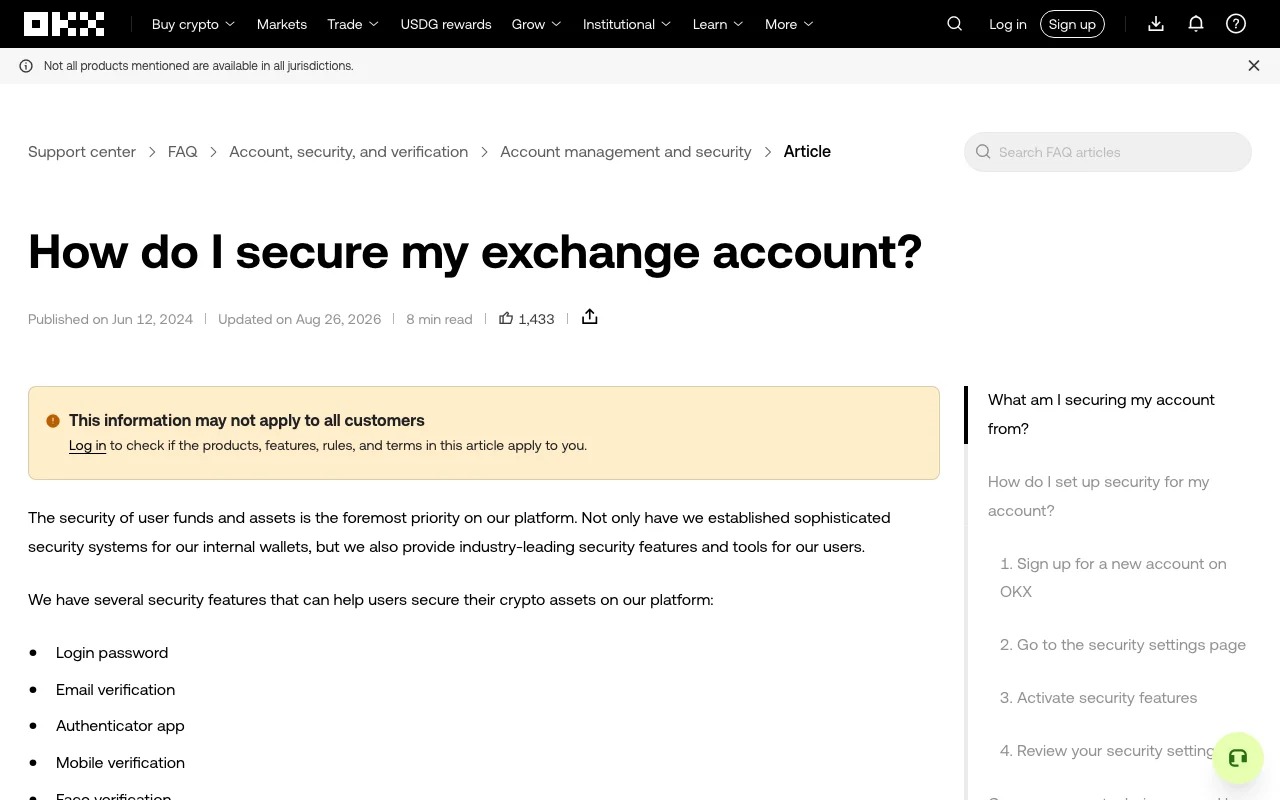
The OKX help center page "How do I secure my exchange account?" (updated August 26, 2026) gives these steps:
- Open Security in your User Center.
- Under Advanced Security, select Anti-phishing Code.
- Enter any code you like.
- Select Get code to receive an SMS code, or use the code from your authenticator app.
- Select Confirm.
You can view or change the code on the same page later. OKX doesn't list length or character rules on that page, so follow whatever the settings screen tells you.
How to pick a code that works for you
An anti-phishing code isn't a password. It doesn't need to be hard to remember, but a few points matter:
- Make it easy to recognize. Pick something you'll know at a glance, so checking an email takes a second.
- Don't reuse your password or any part of it. The code appears in plain text in every email. Anyone who sees your inbox sees the code.
- Avoid public details like your birthday or the last digits of your phone number. Scammers may find those elsewhere.
- Use a different code on each exchange. This also tells you at once which platform an email came from.
Checking an "exchange email": do it in this order
- Look for the code before reading anything else. If the code is missing or wrong, treat the email as phishing. Don't click links, reply or open attachments.
- Even if the code matches, don't log in through the email. Open the official app or a bookmarked website yourself and check for the same notice there.
- Look at what it asks you to do. However real an email looks, never hand over your seed phrase, private key or verification codes. Never move funds to a "safe address."
- If unsure, use official support. Contact support from inside the app. Don't call a number or add a social account given in the email.
The same logic applies to people pretending to be support staff. The six tells of fake support scams cover the verification steps in more detail.
What an anti-phishing code can't protect you from
The code only tells you who sent a message. That leaves several risks uncovered:
- Phone calls, Telegram, WhatsApp and social media DMs. These channels never carry your code, and they're where fake support agents usually show up.
- Fake websites and fake apps. If you land on a phishing site from a search result, no email is involved and the code doesn't help.
- An account that's already compromised. The code is visible in your account settings. Anyone who gets into your account can see it and use it in a fake email. It doesn't replace a strong password and 2FA.
- A code you've leaked yourself. For example, posting a screenshot of an email in a group chat while asking for help.
The costliest outcome is being tricked into sending your coins away. Protection at the withdrawal step helps there. With a withdrawal address whitelist turned on, funds can only go to addresses you approved in advance. Use both and you have one check on emails and another on withdrawals.
What to do if your code leaks or doesn't match
- The code may have leaked (a screenshot was shared, or someone else got into your inbox): change it right away in the settings above. If you think the email account itself is compromised, also change the email password and check its auto-forwarding rules.
- An email has the wrong code or none: Binance's guidance is that this may be phishing and should be reported. Don't click any links in it.
- You already clicked and entered your password: change your login password from the official app as soon as possible. Reset 2FA, review logged-in devices and saved withdrawal addresses, and contact official support.
FAQ
If I set an anti-phishing code, am I safe from phishing?
No. It only helps you check whether an email (and, on Binance, an SMS) really came from the platform. Calls, DMs and fake websites are outside its scope.
Will every genuine email include the code?
Both Binance and OKX say it appears in their genuine emails once it's on. After you set it up, wait for the next email from the platform, such as a login alert. Note where the code appears so later checks are quicker.
Do I need to change the code regularly?
Neither exchange asks you to. Keep it as long as you're sure it hasn't leaked, and change it right away if you think someone has seen it.
Sources
- Binance Support: What Is an Anti-Phishing Code and How to Set It up on Binance? (updated 2026-08-28, checked 2026-10-19)
- OKX Help Center: How do I secure my exchange account? (updated 2026-08-26, checked 2026-10-19)
This article is general security information, not investment advice. Exchange interfaces and rules can change, so check the official pages.